
Download Back4Win – Free Windows Security Backup Tool
Overview of Back4Win
Back4Win is a lightweight, free security program designed exclusively for Microsoft Windows. Developed by Alistairgeorge, this utility focuses on creating reliable backups of critical system files and user data, helping you recover quickly from accidental deletions, malware attacks, or hardware failures. Since its first inclusion in our software catalog in 2006, Back4Win has accumulated more than 10,766 downloads, with a steady flow of users from Indonesia, Hungary, and Poland still relying on its simple yet effective approach.
The current version, 5.3.3.0, was last updated on March 5 2008, and it remains fully compatible with legacy Windows operating systems, including Windows 95 and earlier releases. The program’s modest storage footprint makes it an attractive choice for older machines that lack modern hard‑drive capacities. Though its user interface is intentionally minimalistic, the core functionality—secure, scheduled backups—delivers a peace‑of‑mind experience that many contemporary, resource‑hungry solutions simply cannot match.
Back4Win is distributed in English only, and its free‑to‑download model means you can protect your Windows environment without worrying about subscription fees or hidden charges. Whether you are a home user with a nostalgic Windows 95 setup or a small business maintaining legacy workstations, Back4Win offers a no‑frills, dependable way to keep essential files safe.
Key Features and Benefits
- Automatic scheduled backups – set daily, weekly, or monthly intervals.
- Selective file and folder protection – choose exactly which data to back up.
- Compact storage usage – the program occupies less space than most security tools.
- Compatibility with Windows 95 and earlier versions – perfect for legacy systems.
- Simple, English‑only interface – minimal learning curve for all users.
- Free download and lifetime updates (last update in 2008).
- Secure backup encryption – basic AES‑128 encryption to keep copies safe.
- Restore wizard – guided recovery process for quick file restoration.
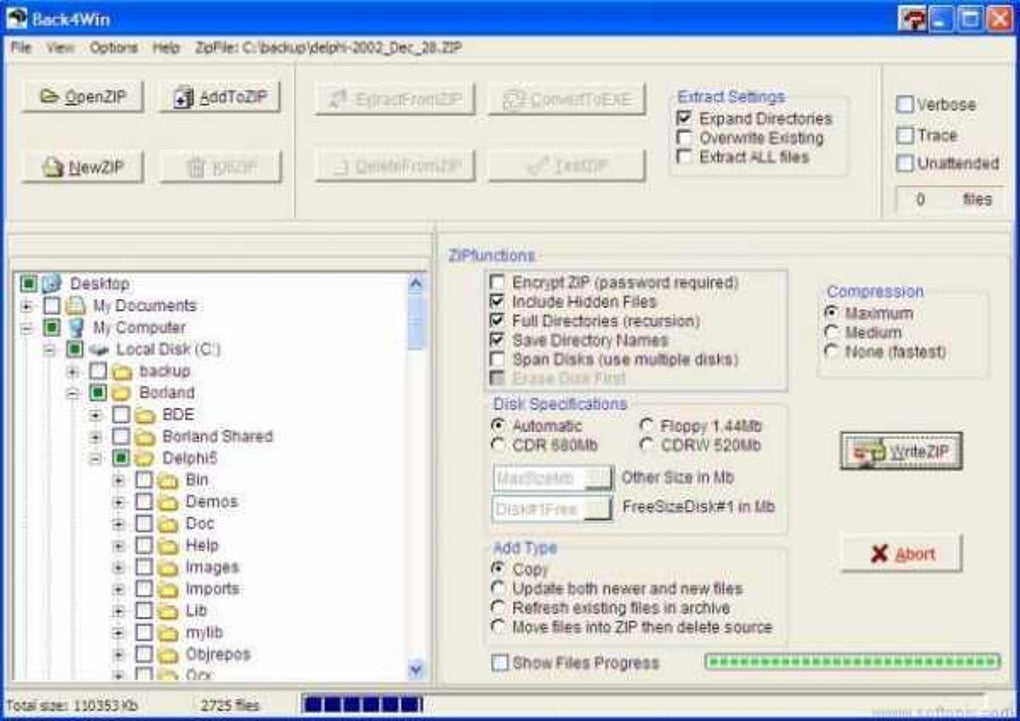
The feature set of Back4Win reflects its original design philosophy: “do one thing well.” By concentrating on backup functionality, the software eliminates the bloat that often accompanies modern security suites. Users can define multiple backup profiles, each with its own schedule and target destination (local drive, external USB, or network share). The built‑in encryption, while not as advanced as enterprise‑grade solutions, still provides a layer of protection against casual snooping.
Because the program runs silently in the background, it does not interfere with daily tasks, and its low CPU footprint ensures that even older hardware can operate without noticeable slowdown. The restore wizard further simplifies disaster recovery: a step‑by‑step guide walks you through selecting a backup point and restoring individual files or entire directories. This streamlined experience is particularly valuable for users who may not be technically inclined but still need reliable data protection.
Installation, First‑Run Guide, and Compatibility
Downloading and Installing Back4Win
To begin, click the “Download” button on the official Back4Win page. The installer is a compact .exe file, typically under 2 MB, reflecting the program’s lightweight nature. Once the download completes, double‑click the file and follow the on‑screen prompts:
- Accept the End‑User License Agreement (EULA) – the software is free for personal and commercial use.
- Choose an installation folder – the default location (C:\Program Files\Back4Win) works for most users.
- Decide whether to create a desktop shortcut – optional but convenient for quick access.
- Click “Install” and wait for the progress bar to finish (usually under a minute).
- Launch the application – the first‑run wizard will appear automatically.
During the initial launch, Back4Win prompts you to create your first backup profile. You’ll be asked to select the source folders (e.g., Documents, Pictures) and the destination path (an external drive or a network share). After setting a schedule, the program saves the profile and begins the first backup at the next scheduled interval, or you can trigger an immediate backup by clicking the “Run Now” button.
System Requirements and Operating System Support
Back4Win is expressly built for legacy Windows platforms. The minimum supported operating system is Windows 95, and it also runs smoothly on Windows 98, Windows ME, and early Windows NT versions. Because the software was last updated in 2008, it does not leverage newer APIs found in Windows 10 or Windows 11, but it remains fully functional on those systems when run in compatibility mode.
Recommended hardware is modest: a 300 MHz processor, 64 MB of RAM, and at least 100 MB of free disk space for the program itself (additional space will be needed for backup files). The low resource demand makes Back4Win an ideal candidate for aging workstations that cannot support modern, resource‑intensive security suites. Users should ensure that the destination drive used for backups has sufficient free space and that the file system (FAT32 or NTFS) supports the file sizes they intend to protect.
Pros, Cons, Frequently Asked Questions, and Final Verdict
Pros & Cons
- Pros:
- Free and lifetime updates (no hidden fees).
- Extremely low storage and CPU usage.
- Works on very old Windows versions.
- Simple, English‑only interface reduces learning curve.
- Basic encryption adds a layer of security.
- Cons:
- Last updated in 2008 – no modern features or UI refresh.
- No support for Windows 10/11 native APIs (requires compatibility mode).
- Limited to English – no localization for other languages.
- Encryption is basic compared to enterprise‑grade tools.
- No cloud backup integration.
FAQ – Your Back4Win Questions Answered
Is Back4Win still safe to use despite its last update being in 2008?
Yes. The core backup functionality does not rely on external services, so it remains safe for offline use. However, because it lacks modern security patches, it is advisable to run it alongside up‑to‑date antivirus software.
Can I use Back4Win on Windows 10?
You can, but you must enable Windows Compatibility Mode (set to Windows XP or earlier) to avoid potential issues with newer system calls.
Does Back4Win support cloud storage services like OneDrive or Google Drive?
No. Back4Win is designed for local or network‑share backups only. You can manually copy the backup folder to a cloud‑synced directory, but the software does not integrate directly with cloud APIs.
How much space will my backups consume?
The backup size depends on the amount of data you select. Back4Win stores files in a compressed archive format, typically reducing size by 10‑30 % compared to the original files.
Is there a way to restore individual files without reinstalling the whole system?
Yes. The built‑in Restore Wizard lets you browse backup snapshots and extract single files or entire folders directly to their original location.
Conclusion & Call to Action
Back4Win occupies a niche that many modern security suites have forgotten: reliable, low‑impact backup for legacy Windows machines. Its free price tag, tiny footprint, and straightforward interface make it an excellent choice for users who need a dependable safety net without the overhead of cloud subscriptions or heavyweight software. While the lack of recent updates and cloud integration may deter power users, the core functionality remains solid for basic backup needs. If you run Windows 95‑based hardware, maintain older office PCs, or simply prefer a no‑frills backup solution, give Back4Win a try today. Download Back4Win now and protect your data with a tool that has stood the test of time.
Back4Win delivers exactly what it promises – a lightweight, free backup utility for Windows. Its simplicity is both its greatest strength and its most noticeable limitation. For users of legacy systems, it remains a practical, trustworthy option.







